
Overview
This project shows how to make a talking map, allowing the history contained within a map to be tangible and interactive.
Using conductive paint, a Circuit Playground Express can be connected to different points on a map and provided with short audio clips to play when those areas on the map are touched.
The Circuit Playground Express can connect to externally powered speakers via the audio jack, allowing you to play audio from the board at your preferred volume.
Adafruit's USB powered speakers are excellent for this purpose, though you are welcome to use your own too.




Page last edited March 08, 2024
Make your Map
This map of NYC, courtesy of the New York Public Library, shows a large section of NYC is great detail, with helpful neighborhood indicators.
Print out the PDF below, or use another map as per the goals of your specific project.

A good foundation is always important at the start of a project. Begin by glueing the printed map onto a piece of scrap cardboard.


Mark some locations on the map which you would like to highlight.

There are seven available capacitive touch pads on the Circuit Playground Express (the eighth analog pad, A0, is used for audio output).
This provides you with seven possible locations on your map to highlight.
Electric Paint
Once you've chosen your locations, you can use Bare Conductive's electric paint to draw connections to the capacitive touch pads on Circuit Playground Express.
No Overlapping Lines
Think carefully about where you position the board on the map so that you can connect all the point on your map to it without any of them overlapping.
The lines don't have to be perfect, as long as they don't cross!

Page last edited March 08, 2024
Prepare Audio Files

For this map, we've chosen an assortment of music clips that are tied to specific locations around the city.
- Wu Tang Clan - C.R.E.A.M. - Stapleton, Staten Island
- Woody Guthrie - This Land is Your Land - 3520 Mermaid Ave. Coney Island
- Jay-Z - Empire State of Mind - 560 State St. Brooklyn, NY
- Notorious B.I.G. - Hypnotize - 226 St. James Pl. Brooklyn, NY
- Frank Sinatra - My Way - 417 Monroe St, Hoboken, NJ 07030
- John Lennon - Strawberry Fields - The Dakota 1 W 72nd St, New York, NY 10023
- Louis Armstrong - What a Wonderful World - 34-56 107th St, Corona, NY 11368
For all of these artists, the locations chosen for this project played an important role in their life, either as a place of residence, childhood home, or a location mentioned in their lyrics.
Choose your own
You can adapt existing audio files from your computer for use in this project, or audio clips can be downloaded from sites like http://soundbible.com/ or https://freesound.org/.
You will need to convert the files to the appropriate format for microcontroller use. See this guide on how to convert audio files.
Your audio files must be named 01.wav, 02.wav, etc. so all filenames are two digits.
Page last edited March 08, 2024
CircuitPython Code

Getting Familiar
CircuitPython is a programming language based on Python, one of the fastest growing programming languages in the world. It is specifically designed to simplify experimenting and learning to code on low-cost microcontroller boards.
CircuitPython is easiest to use within the Mu Editor. If you haven't previously used Mu, this guide will get you started.
If you haven't used Circuit Playground Express and CircuitPython together before, make sure you've updated it with the latest version of CircuitPython. This guide will show you how.
Copy that Code!
Plug your Circuit Playground Express into your computer (mac/PC/Linux) via a known good USB A to micro-B cable. Your board should appear to the computer as a flask disk drive named CIRCUITPY. If you see a disk name CPLAYBOOT, try to press the reset button again. If the only drive name you get is CPLAYBOOT, CircuitPython may not be loaded on the board. You can load CircuitPython per this guide.
Copy code.py from the link below and put it in CIRCUITPY root directory. You can work with this code in any text editing application, or open and save with Mu if you prefer.
# SPDX-FileCopyrightText: 2018 Anne Barela for Adafruit Industries
#
# SPDX-License-Identifier: MIT

# Interactive Map
# for Adafruit Circuit Playground express
# with CircuitPython

from adafruit_circuitplayground.express import cpx

# Change this number to adjust touch sensitivity threshold, 0 is default
cpx.adjust_touch_threshold(600)

WHITE = (30, 30, 30)
RED = (90, 0, 0)
YELLOW = (45, 45, 0)
GREEN = (0, 90, 0)
AQUA = (0, 45, 45)
BLUE = (0, 0, 90)
PURPLE = (45, 0, 45)
BLACK = (0, 0, 0)

cpx.pixels.brightness = 0.1  # set brightness value

# The seven files assigned to the touchpads
audio_file = ["01.wav", "02.wav", "03.wav",
              "04.wav", "05.wav", "06.wav",
              "07.wav"]

# NeoPixel colors
step_col = [RED, YELLOW, GREEN, AQUA, BLUE, PURPLE, WHITE]

def play_it(index):
    cpx.pixels.fill(step_col[index])  # Light lights
    cpx.play_file(audio_file[index])  # play clip
    print("playing file " + audio_file[index])
    cpx.pixels.fill(BLACK)  # unlight lights

while True:
    # playback mode

    if cpx.touch_A1:
        play_it(0)
    if cpx.touch_A2:
        play_it(1)
    if cpx.touch_A3:
        play_it(2)
    if cpx.touch_A4:
        play_it(3)
    if cpx.touch_A5:
        play_it(4)
    if cpx.touch_A6:
        play_it(5)
    if cpx.touch_A7:
        play_it(6)
Once the code is saved to CIRCUITPY, drag your audio files over too. You should be able to test that they play by touching the capacitive pads, the miniature speaker on the board will play them (but for higher fidelity and more volume, connecting external speakers is recommended).

Troubleshooting
Problem: My Circuit Playground Express isn't recognized by Mu!
Solution: Make sure your board is set up with CircuitPython, which has the Circuit Playground Express show up as a flash drive named CIRCUITPY when you connect the CPX to your computer. If it is showing up as CPLAYBOOT on your computer, you can follow the steps in this guide to ensure CircuitPython is loaded and you see the CIRCUITPY drive.
Problem: I can't hear any audio!
Solution: Check that your Circuit Playground Express is connected to your battery pack and the slide switch on pack is set to "ON".
Problem: I STILL can't hear any audio!
Solution: Check that your audio files are all named correctly, 01.wav to 07.wav. Don't forget those leading zeroes!
Page last edited March 08, 2024
Your Interactive Map
Now it's time to put your map to work!
Because the speaker that comes on the Circuit Playground Express cannot replicate complex sounds with high fidelity, it is useful to connect externally powered speakers to better hear your audio clips.
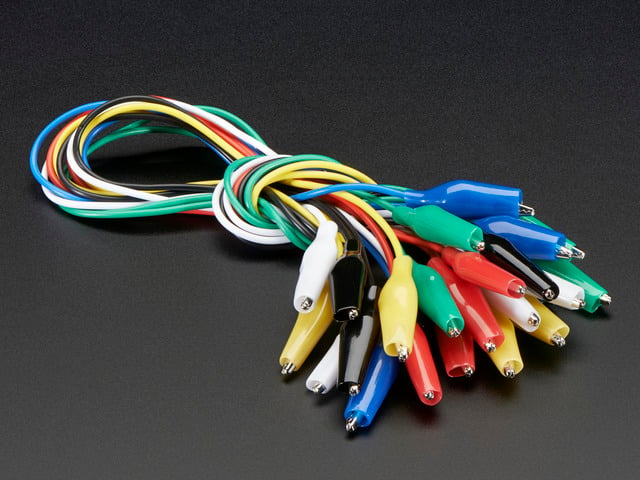
Alligator clips connected from the GND and A0 pads on CPX to the tip and GND on an audio jack (see circuit diagram) will transmit your audio to the speakers.
Follow this guide for more details on playing audio through Circuit Playground Express.

Page last edited March 08, 2024


