Overview
Adabot needs your help, Doctor! It's time to operate!! It takes a steady hand to remove the game pieces!
You can build this fun, classic game using a Circuit Playground Express to react whenever your hand isn't so steady and your tweezers bump the edge of an opening. You'll build the board, and then program the Circuit Playground Express using CircuitPython or MakeCode to test the capacitive touch pads for contact.
A tip of the hat goes to Maker Camp for their inspiring project using the Makey Makey board.
Parts
To build this project you'll need the parts below, as well as a computer for programming and uploading code to the Circuit Playground Express.
Page last edited March 08, 2024
Text editor powered by tinymce.
Build the Operating Table
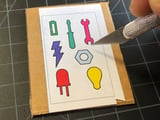
Print the Board and Pieces
Use a color laser or inkjet printer to print the file linked here onto a piece of white cardstock. Be sure to print without any image scaling so that the parts will align.
Mount the Board
- Cut out the board image
- Glue it to the top of a cardboard box. An Adafruit shipping box may be large enough or find another box approximately the size of the board or larger.
Cut the Openings
- Use a hobby knife to cut out the board image and cardboard lid of your box at all of the indicated "incision" points
- Also cut out the holes for the Circuit Playground Express mounting points and touch pads so we can connect alligator clips to them later from below the board
Add Copper Tape Contacts
The copper tape is what we'll use to detect errant tweezers touches, by running it around the edges of each incision hole. Each tape site will be connected to the Circuit Playground Express via an alligator clip lead.
- Cut out a piece of copper tape that is just a bit bigger than the opening
- Press it down to fit and to indicate the hole below
- Slit the tape along the top and bottom edges
- Slit the tape vertically up the center as shown
- Push the two flaps down into the hole
- Repeat for each of the seven part holes
Tape Connector Tabs
Inside each taped hole, connect another short strip of copper tape as shown. This is where each alligator clip will connect.
Inner Boxes
- Next, cut out the papercraft boxes from the printed sheet. (Yours may vary in color from the ones shown here)
- Cut along the solid lines
- Fold along the dotted lines -- the outer set will be "mountain" folded to form a lip, the inner set a "valley" fold to form the walls -- see the picture for proper fold directions
- Tape the boxes under each hole as shown
Add Circuit Playground Express
You'll now add the Circuit Playground Express by fastening it to the board with four medium screws and nuts.
Connect the Alligator Clips
Follow the images here to connect the Circuit Playground Express capacitive touch pads to the copper tape tabs.
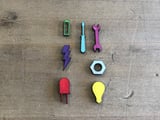
Game Pieces
- Glue the game pieces section of the printout to a piece of scrap cardboard
- Cut out the pieces with a hobby knife or scissors
Next, we'll program the Circuit Playground Express in CircuitPython, or you can skip ahead to program it with MakeCode.
Page last edited March 08, 2024
Text editor powered by tinymce.
Code with CircuitPython
The key feature of Operation is that the lights and buzzers alarm whenever your tweezers touch the edge of a hole. We've connected the copper tape at each hole to a capacitive touch pad on the Circuit Playground Express -- now we want to code the board in CircuitPython to react.
CircuitPython Setup
To get started, you'll want to set up the Circuit Playground Express for use with CircuitPython by following this guide. When you're ready, and can upload code to the board return here.
Adafruit really likes using the Mu editor to edit the CircuitPython code. See this guide on loading and using Mu.
Code
You can copy the code here and then paste it into Mu. Save it to your Circuit Playground Express as code.py
# SPDX-FileCopyrightText: 2018 John Park for Adafruit Industries
#
# SPDX-License-Identifier: MIT
#
# Adabot Operation Game
# CPX, alligator clips, copper tape, tweezers, surgery, and fun!
import board
import touchio
from adafruit_circuitplayground.express import cpx
# import time # uncomment if testing raw read values
cap_pins = (board.A1, board.A2, board.A3, board.A4, board.A5,
board.A6, board.A7)
touch_pads = []
for i in range(7):
touch_pads.append(touchio.TouchIn(cap_pins[i]))
for touch_pad in touch_pads:
touch_pad.threshold = 3500 # adjust value to fine-tune touch threshold
MAGENTA = (10, 0, 10)
VIOLET = (5, 0, 15)
BLUE = (0, 0, 20)
CYAN = (0, 10, 10)
GREEN = (0, 20, 0)
YELLOW = (10, 10, 0)
ORANGE = (15, 5, 0)
RED = (20, 0, 0)
WHITE = (3, 3, 3)
COLORS = [MAGENTA, VIOLET, BLUE, CYAN, GREEN, YELLOW, ORANGE, RED, WHITE]
cpx.pixels.fill(WHITE)
while True:
for i in range(7):
# uncomment block to check the raw touch pad values
# print("raw %s value for pad " % i)
# print(touch_pads[i].raw_value)
# time.sleep(.5)
if touch_pads[i].value:
# print("Touched %s" % i) # uncomment for debugging
cpx.pixels.fill(RED)
cpx.play_tone(660, 0.7)
cpx.pixels.fill(COLORS[i])
Code Breakdown
Libraries
Here's what's going on in the code. First, we import the board, touchio, and adafruit_circuitplayground.express libraries. These give us the commands we need to address the board and it's capacitive touch pads, as well as the NeoPixels by using the cpx commands.
(Note that the time library import is commented out, you will uncomment this if later you decide to check your raw touch values, which is covered later.)
import board import touchio from adafruit_circuitplayground.express import cpx # import time # uncomment if testing raw read values
Lists and Touchpads
Next, we'll create a list of the board's cap touch pins and initialize them as touchio touch pads. And, we'll set the touch threshold to 3500. This can be tuned later.
cap_pins = (board.A1, board.A2, board.A3, board.A4, board.A5,
board.A6, board.A7)
touch_pads = []
for i in range(7):
touch_pads.append(touchio.TouchIn(cap_pins[i]))
for touch_pad in touch_pads:
touch_pad.threshold = 3500
Color Lists
We'll create a set of variables for different colors and their values. Then, we'll create a list of those colors called ... COLORS. This way we can associate an index number for each touch pad to a color in the list.
MAGENTA = (10, 0, 10) VIOLET = ( 5, 0, 15) BLUE = ( 0, 0, 20) CYAN = ( 0, 10, 10) GREEN = ( 0, 20, 0) YELLOW = (10, 10, 0) ORANGE = (15, 5, 0) RED = (20, 0, 0) WHITE = ( 3, 3, 3) COLORS = [MAGENTA, VIOLET, BLUE, CYAN, GREEN, YELLOW, ORANGE, RED, WHITE]
NeoPixel Fill
We'll then fill all of the on-board NeoPixels white with this command:
cpx.pixels.fill(WHITE)
The Loop
Now that everything is set up, we have the main loop of the program. What happens here is that we'll iterate through each of the seven pads, checking to see if their value is above the threshold. If it is, we fill the NeoPixels red, play a buzzer sound, and then fill the pixels to the color associated with that pad.
while True:
for i in range(7):
# uncomment this block to check the raw touch pad values
# print("raw %s value for pad " % i)
# print(touch_pads[i].raw_value)
# time.sleep(.5)
if touch_pads[i].value:
print("Touched %s" % i)
cpx.pixels.fill(RED)
cpx.play_tone(660, 0.7)
cpx.pixels.fill(COLORS[i])
Threshold Tuning
Note the section in the code above that is commented out. If you uncomment it by removing the leading pound symbols (#) you can watch the raw touch values being printed in the Mu REPL or other serial terminal connected to your Circuit Playground Express. Watch for the typical values when not being touched and then the values when they are touched.
If, say, the pads typically read around 2000 but then shoot up to 4000 when you touch them with your tweezers, you could set the threshold to 3500.
With the code uploaded to the board, you're ready to play!
Page last edited March 08, 2024
Text editor powered by tinymce.
Code with MakeCode
If you'd prefer to code the Adabot Operation Game with MakeCode, this is the page for you!
Getting Started with MakeCode
If you're new to MakeCode, head to this guide to get started. Once you're able to upload MakeCode to your Circuit Playground Express, return here.
Operation MakeCode
The key feature of Operation is that the lights and buzzers alarm whenever your tweezers touch the edge of a hole. We've connected the copper tape at each hole to a capacitive touch pad on the Circuit Playground Express -- now we want to code the board in MakeCode to react.
On Start
First, we set all the pixels to white, with the set all pixels block from the NEOPIXEL category.
Then set the capacitive touch threshold on all pins to 1000 with the button pin A1 set threshold 200 block found in the INPUT category. You can adjust this value as needed in case your tweezers aren't causing the copper tape and alligator jumper wire antennae to trigger!
Per Pin Block
The rest of the code is very simple! We're going to create an on button A click block from the INPUT category and then change it to on pin A1 down. This is how you can test a pad for a capacitive touch event.
Inside this block we'll set the pixels red when the pad has triggered, and then play a tone. Finally, we'll change the pixels to a unique color, in this case, magenta.
Simply duplicate this block six times, changing each one to use a different pad from A2-A7, and adjusting the colors. That's all there is to it!
Click this button to open the live MakeCode session in your browser.
Page last edited March 08, 2024
Text editor powered by tinymce.
Operate!
To play the game, plug in the battery pack and then turn it on. Load the pieces into their holes. Then, with a steady hand, try removing each piece using the tweezers! If you touch the sides and the buzzer goes off, your turn ends! See who can collect the most pieces.
Page last edited March 08, 2024
Text editor powered by tinymce.